Cloudflare R2
DatoCMS allows you to use your own Cloudflare and imgix accounts to store your project assets. That way you're in full control of your data, and you can serve assets from your own domain instead of the default www.datocms-assets.com.
How to activate custom Cloudflare R2 storage for your DatoCMS project
To store your DatoCMS assets in a custom Cloudflare R2 bucket please follow these steps:
Create a new bucket
To create a new R2 bucket from the Cloudflare dashboard:
Log in to the Cloudflare dashboard and select R2
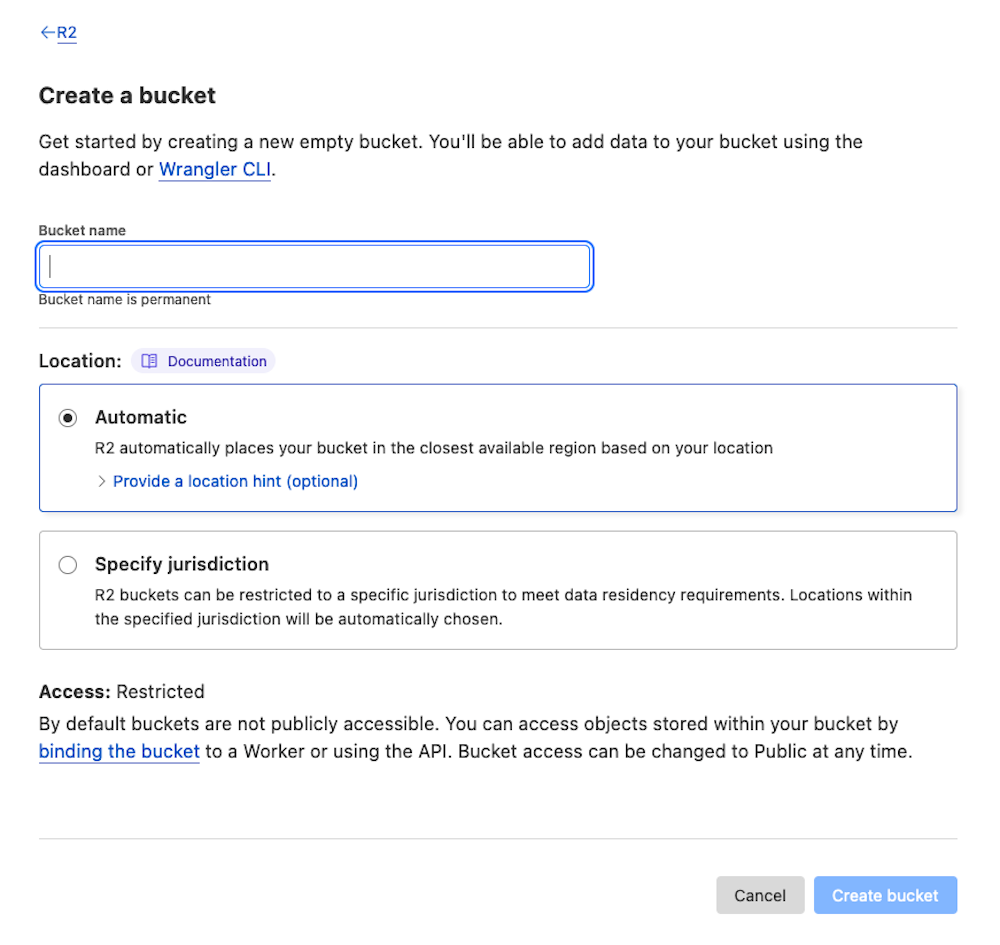
Select Create bucket
Enter a name for the bucket
At this time, imgix does not support the "Specify jurisdiction" option, so choose the "Automatic" option for Location, possibly specifying a location hint.
Select Create bucket
Configure CORS Policy
Enter the bucket settings, and in the CORS Policy section, select Edit CORS Policy, and paste the following code:
[ { "AllowedOrigins": [ "*" ], "AllowedMethods": [ "PUT" ], "AllowedHeaders": [ "Content-Type" ] }]Create an R2 API Token
To create a new R2 API Token from the Cloudflare dashboard:
Log in to the Cloudflare dashboard and select R2
Select Manage R2 API Tokens
Click the Create API Token button
Specify a name for the token (e.g. "DatoCMS Read/Write")
Pick the "Object Read & Write" option under Permissions
Under Specify bucket(s), select Apply to specific buckets only and select the newly created bucket
Under TTL, select "Forever"
Click Create API Token
On the next page, make sure to copy the following values (you'll need to pass this info to DatoCMS Support later in the process):
Access Key ID
Secret Access Key
Endpoint for S3 clients
Create an imgix source
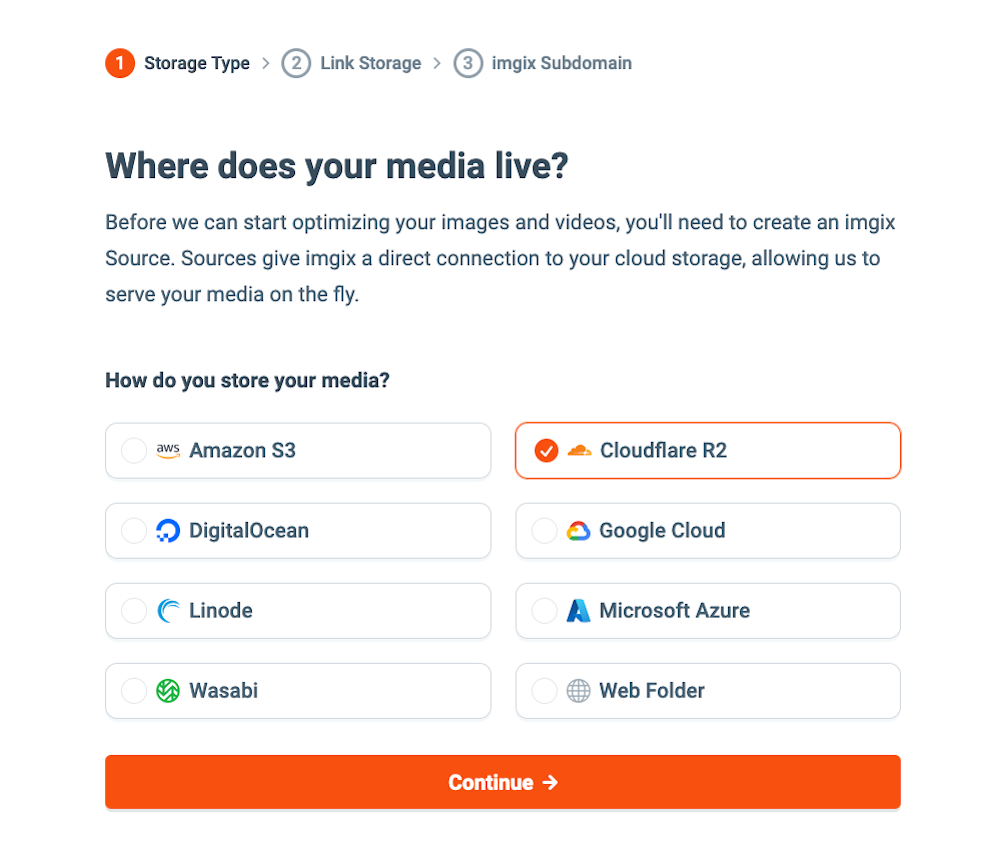
Go to imgix and create a new account. Create a new source, and link it to the R2 bucket you just created.
Adding a custom domain
If you're not satisfied with the default imgix subdomain (e.g. https://your-source.imgix.net) you can add a custom domain to the imgix source, then configure your domain DNS settings so that its CNAME record points to your-source.imgix.net:

Enable HTTPS for the imgix source
DatoCMS requires HTTPS for custom domains. There are two different ways you can enable it. The first one is to request an SSL certificate from imgix. From the imgix documentation:
By default, you will only be able to use the custom subdomain with http. Using https requires an SSL certificate through our CDN partner and incurs additional fees—please contact imgix Support to set this up.
Alternatively, to get HTTPS for free, you can use Cloudflare on top of imgix. This is a cheaper alternative, but requires changing your original domain nameservers to the Cloudflare nameservers, which is something you might not want, and might have some impacts in the way assets are returned.
Send request for custom uploads to DatoCMS support
Once everything is ready, send an email to support@datocms.com and request the change. This is the information we'll ask you for:
Your bucket name (
my-bucket-name)Your Access Key ID, Secret Access Key and Endpoint for S3 clients
The imgix domain (e.g.
your-source.imgix.netorassets.superduper.com)
Together we'll schedule a maintenance window where we'll transfer every asset already uploaded to your Project to the new R2 bucket, and enable the custom domain. Please reach out to schedule that.
From then on all new assets you upload will be stored in your R2 bucket, and will be available from your custom imgix domain.