Configuring the CLI
First of all, you need to install the DatoCMS CLI with the following command:
npm install datocmsYou can verify that everything is correctly installed by running the help command of the CLI:
npx datocms --helpAuthenticating with the CLI
The recommended way to authenticate is via OAuth. Run the following command to log in with your DatoCMS account:
npx datocms loginThis opens your browser for a secure login flow. Credentials are stored locally at ~/.config/datocms/credentials.json. You can verify your identity at any time with:
npx datocms whoamiLinking a project
Next, link the current directory to your DatoCMS project. This generates a datocms.config.json configuration file and avoids having to repeat options for every command you run:
$ npx datocms link
✔ Choose a workspace › My organization✔ Search and select a project › My project✔ Directory where script migrations will be stored ./migrations✔ API key of the DatoCMS model used to store migration data schema_migrationWriting "datocms.config.json"... done
Once linked, every CLI command in this directory will automatically resolve an API token for the linked project using your OAuth credentials. No need to set environment variables.
The generated datocms.config.json file will look similar to this:
{ "profiles": { "default": { "logLevel": "NONE", "siteId": "12345", // The linked DatoCMS project ID "organizationId": "67890", // The organization the project belongs to "migrations": { "directory": "./migrations", "modelApiKey": "schema_migration", "template": "", "tsconfig": "" } } }}Once done, add the config file to your Git repository:
git add datocms.config.jsongit commit -m "Add datocms.config.json file"You can set up additional profiles with the datocms link --profile=<NEW_PROFILE_NAME> command.
When you have multiple profiles, you can specify the profile to use to run a command with the --profile flag (or by exposing a DATOCMS_PROFILE environment variable).
Alternative: Specify a DatoCMS API token
If you prefer not to use OAuth login (e.g. in CI/CD pipelines), you can still provide an API token directly. The CLI resolves authentication in this order:
--api-tokenflagenvironment variable
linked project via OAuth.
The API token's associated role needs at least these permissions on all the environments you want to migrate from or to:
Customize content navigation bar
Create/edit models and plugins
Create/edit workflows
Create/edit shared filters
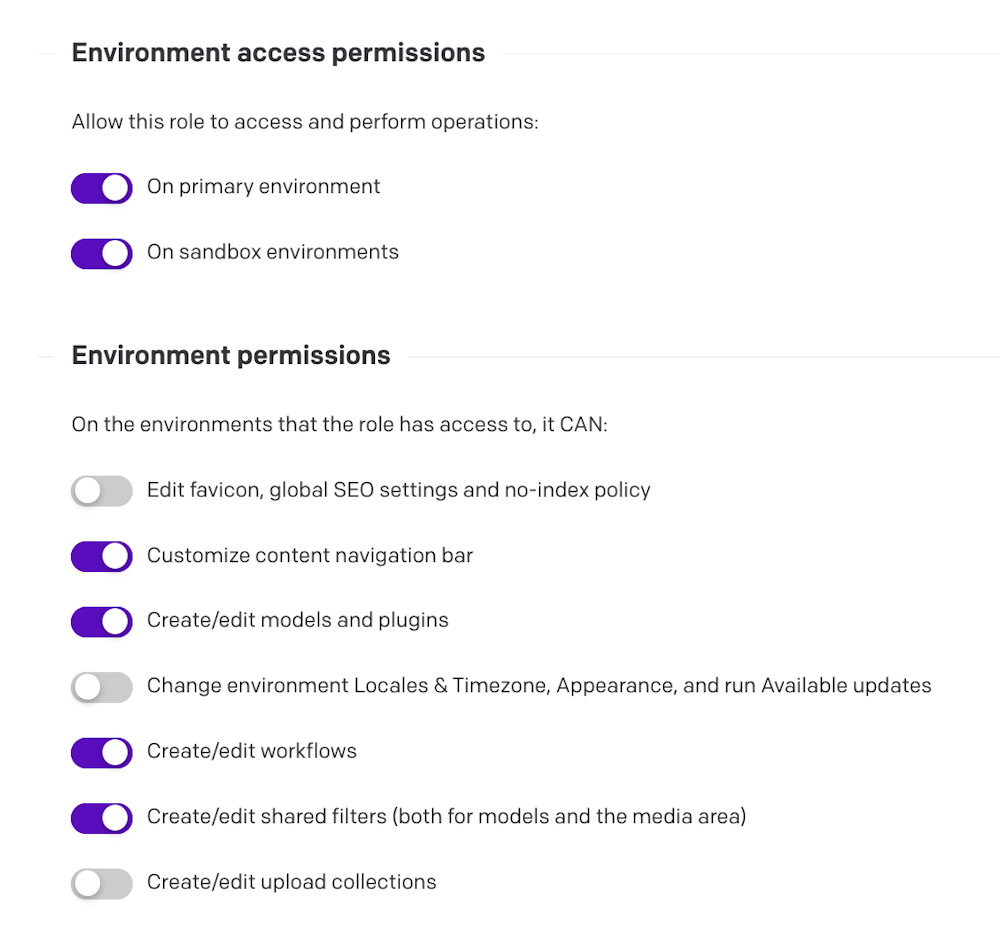
You can pass the API token as a parameter to every command, e.g.:
$ npx datocms migrations:run --api-token=<YOUR-API-TOKEN> [...]Or expose it as an environment variable:
$ export DATOCMS_API_TOKEN=<YOUR-API-TOKEN>$ npx datocms migrations:run [...]The CLI also loads environment variables from a .env file, so you can also place the token there — but make sure not to commit the file to your repo!
$ echo '.env' >> .gitignore$ echo 'DATOCMS_API_TOKEN=<YOUR-API-TOKEN>' >> .env