Alt Text Generator AI
Generate alt text for your images using AI. Boost your SEO and accessibility to rank faster on Google.

Alt Text Generator AI
Alt Text Generator AI is a DatoCMS plugin that writes SEO-friendly, accessible alt text for your images using AI, right inside the DatoCMS dashboard.
Get a free API key at AltTextGeneratorAI.com to start generating alt text today. New accounts get 2 free credits.
Where to find it
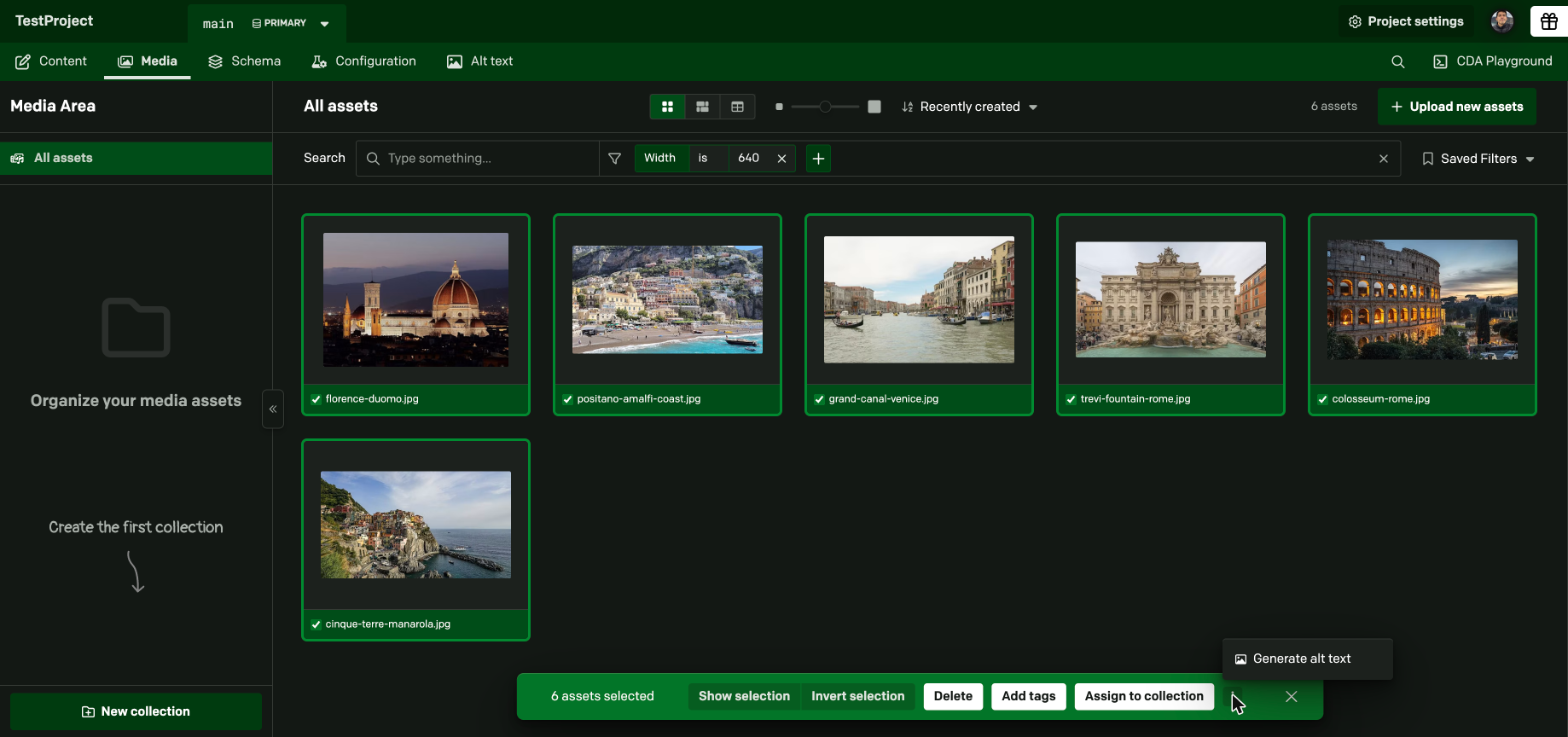
- Media Area: select one or more images and open the menu (the three dots) in the selection bar, or open an image and use the menu next to its filename. Choose Generate alt text.
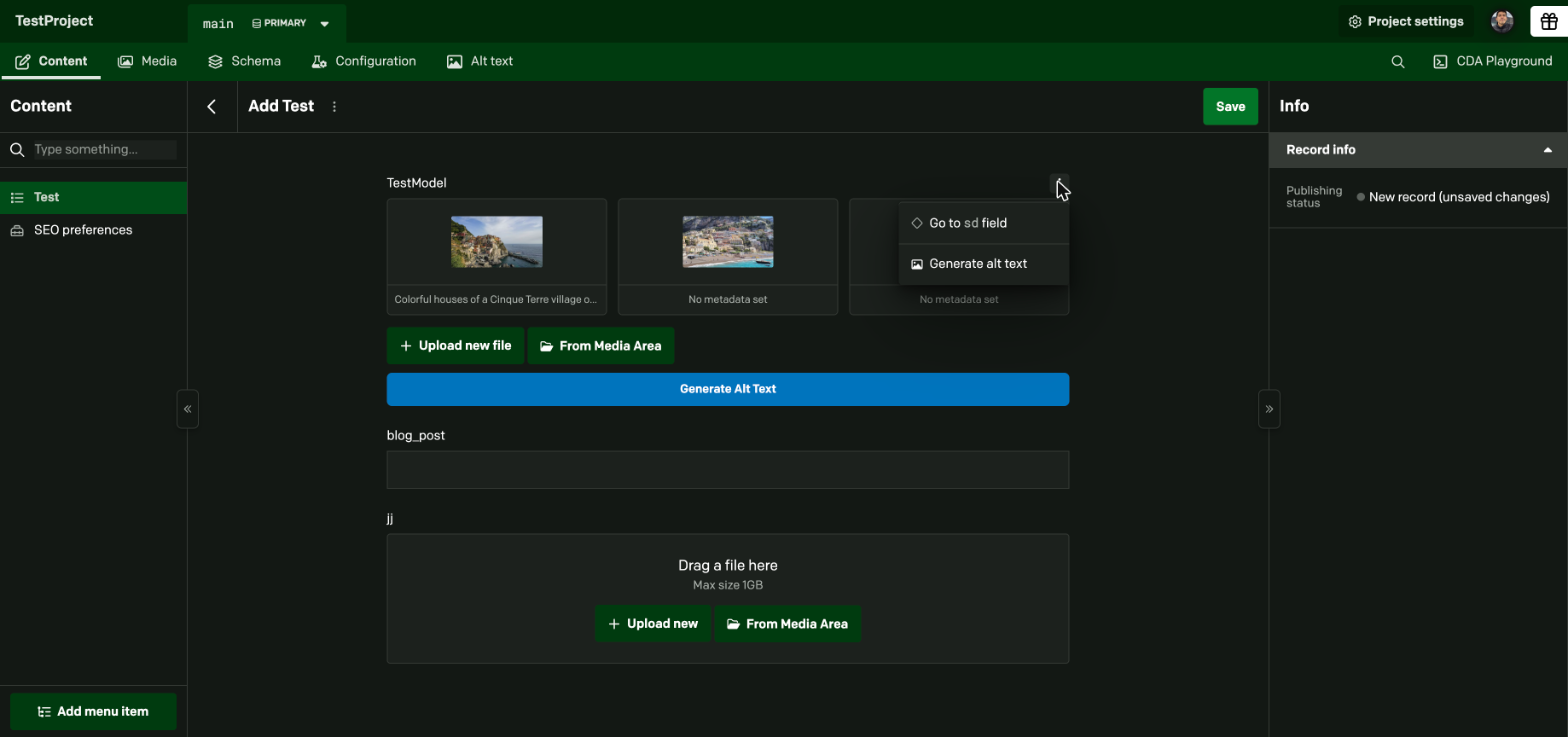
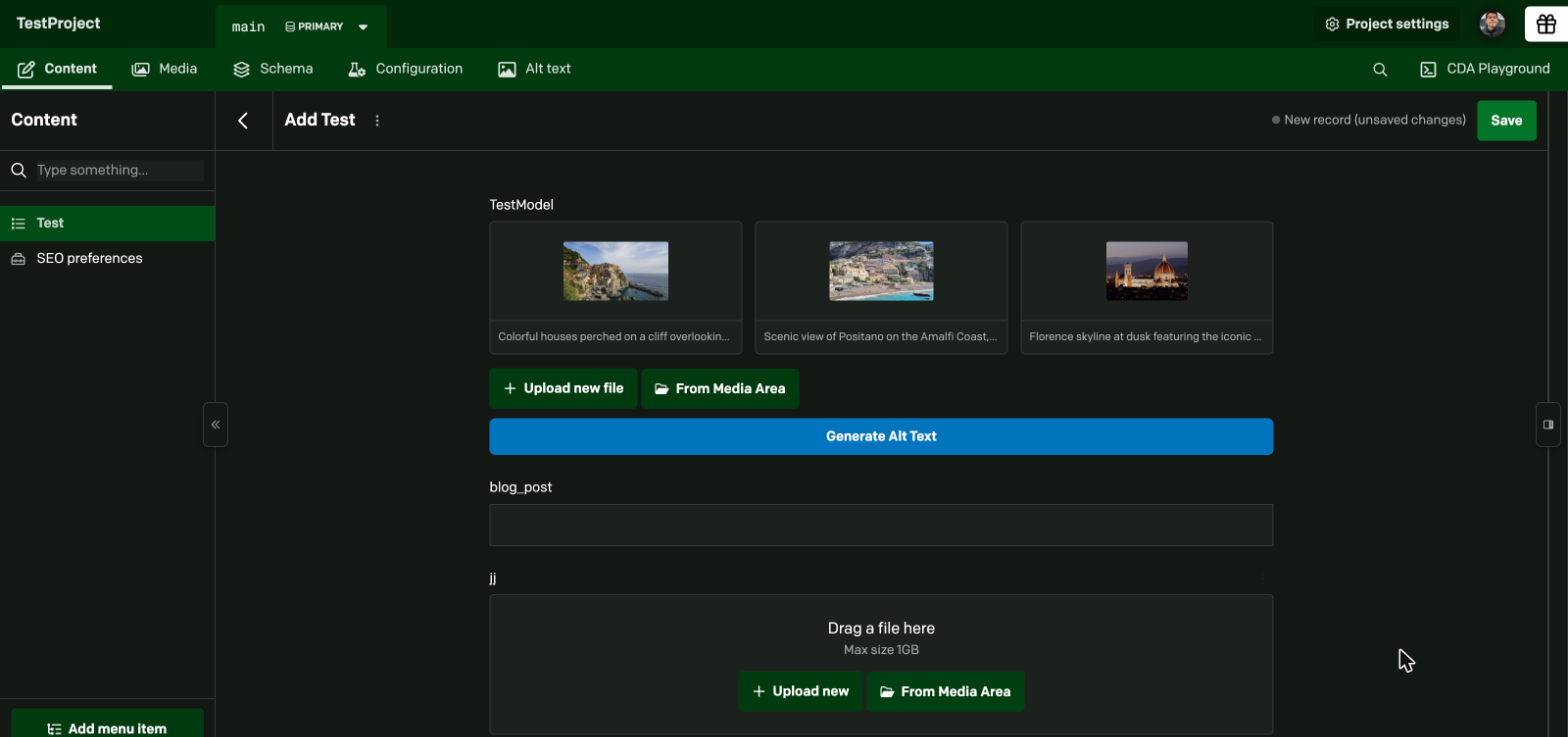
- Records: open the menu of a single asset or gallery field that has images and choose Generate alt text, or use the Generate Alt Text button under the field.
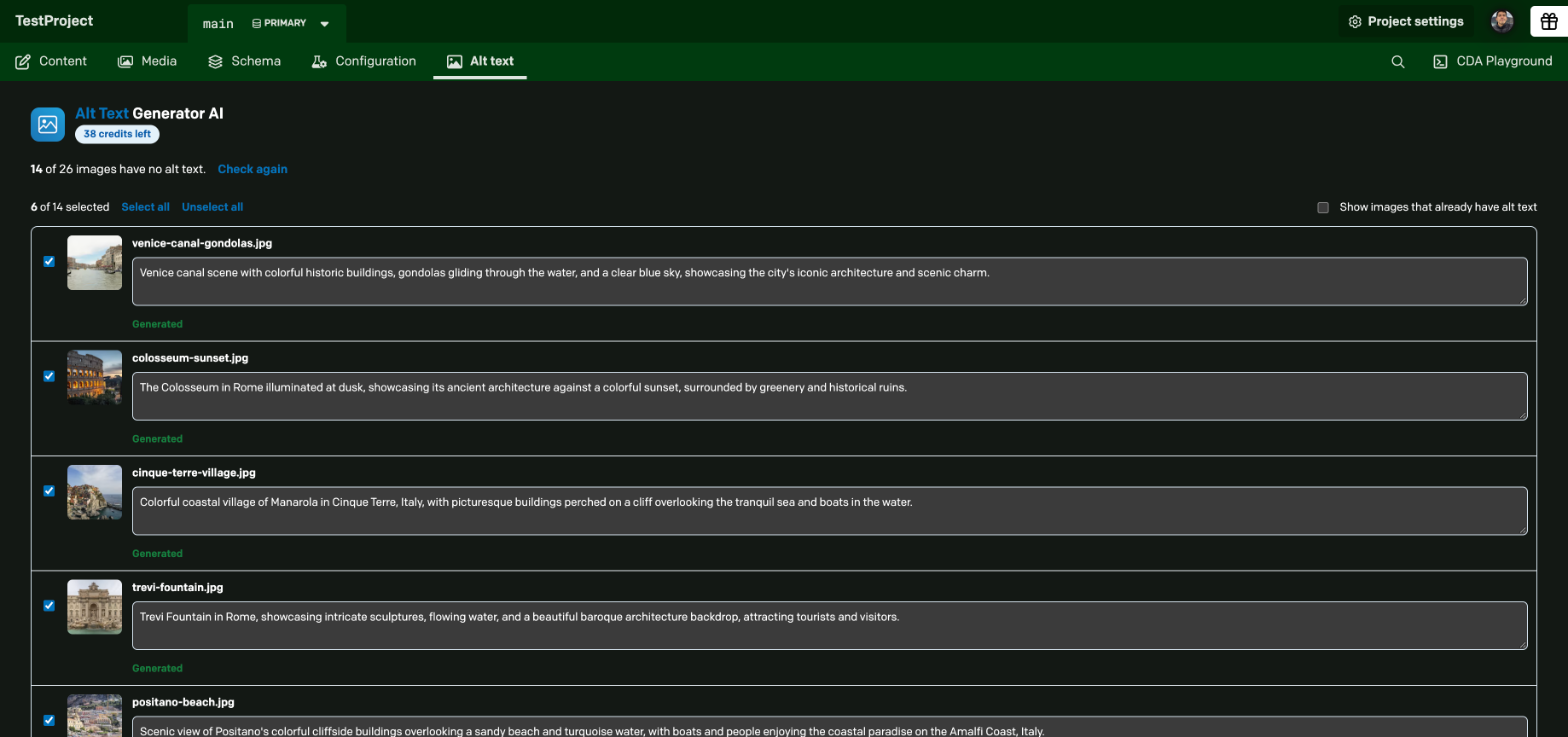
- Alt text tab: the Alt text tab in the main menu lists every image that still needs alt text.
1. Selected assets in the Media Area
Select one or more images, then open the menu in the selection bar.
2. A file or gallery field in a record
Open the menu of a file or gallery field that has images. The Generate Alt Text button under the field opens the same dialog.
3. The Alt text page
Open the Alt text tab in the main menu. See below.
Alt text page
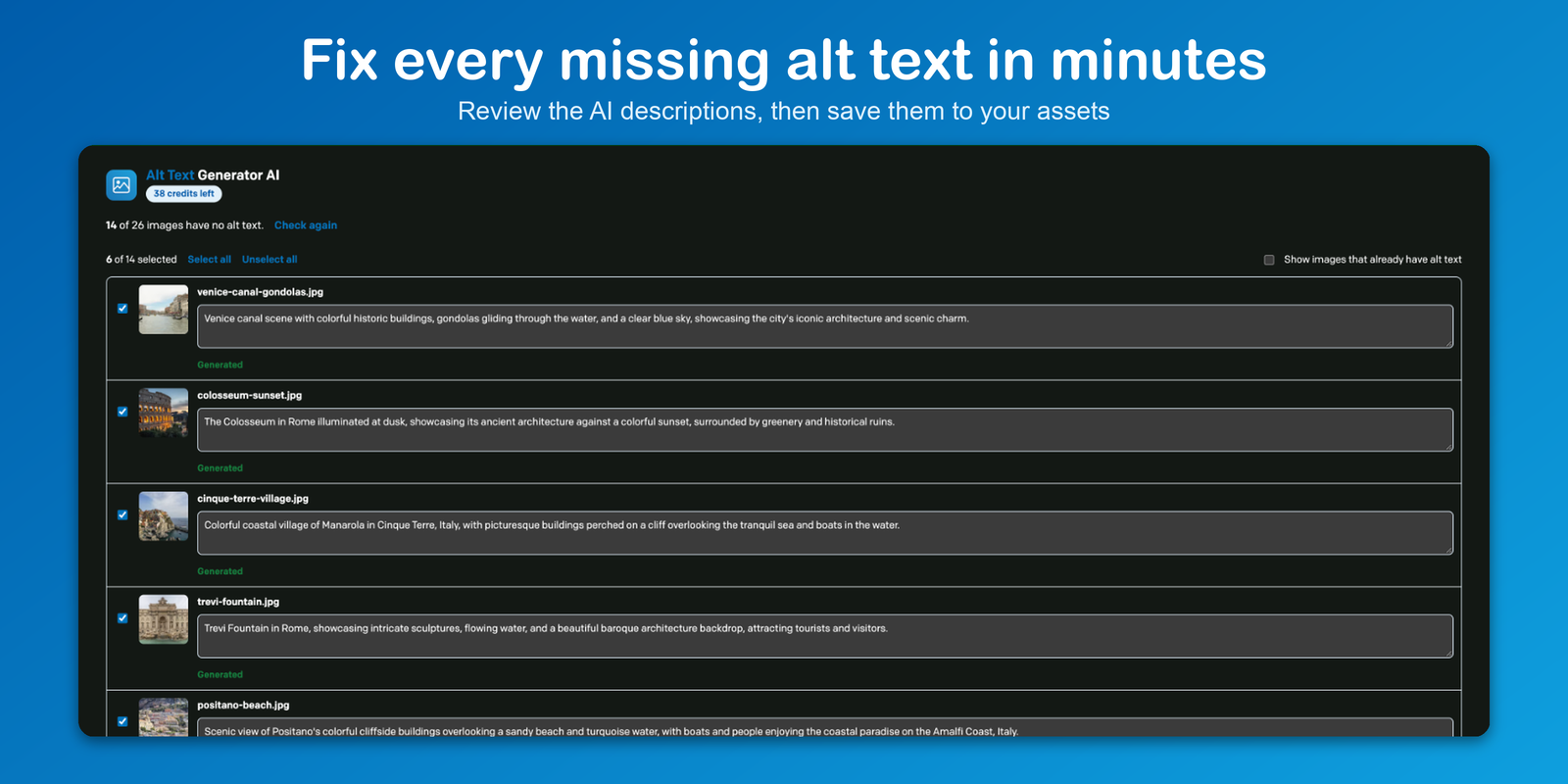
The Alt text tab in the main menu lists every image in the project that has no alt text, for any locale or for one you choose. You can generate, review and save the alt text right on the page, with no extra window.
- Every image is checked to start with. Uncheck the ones you want to skip, or use Select all and Unselect all.
- The page shows only images that still need alt text. Check Show images that already have alt text if you want to redo some of them.
- On a project with several languages, the dialog fills every locale that is still empty.
- The count at the top ("14 of 26 images have no alt text") and your credits update as you save.
How it works
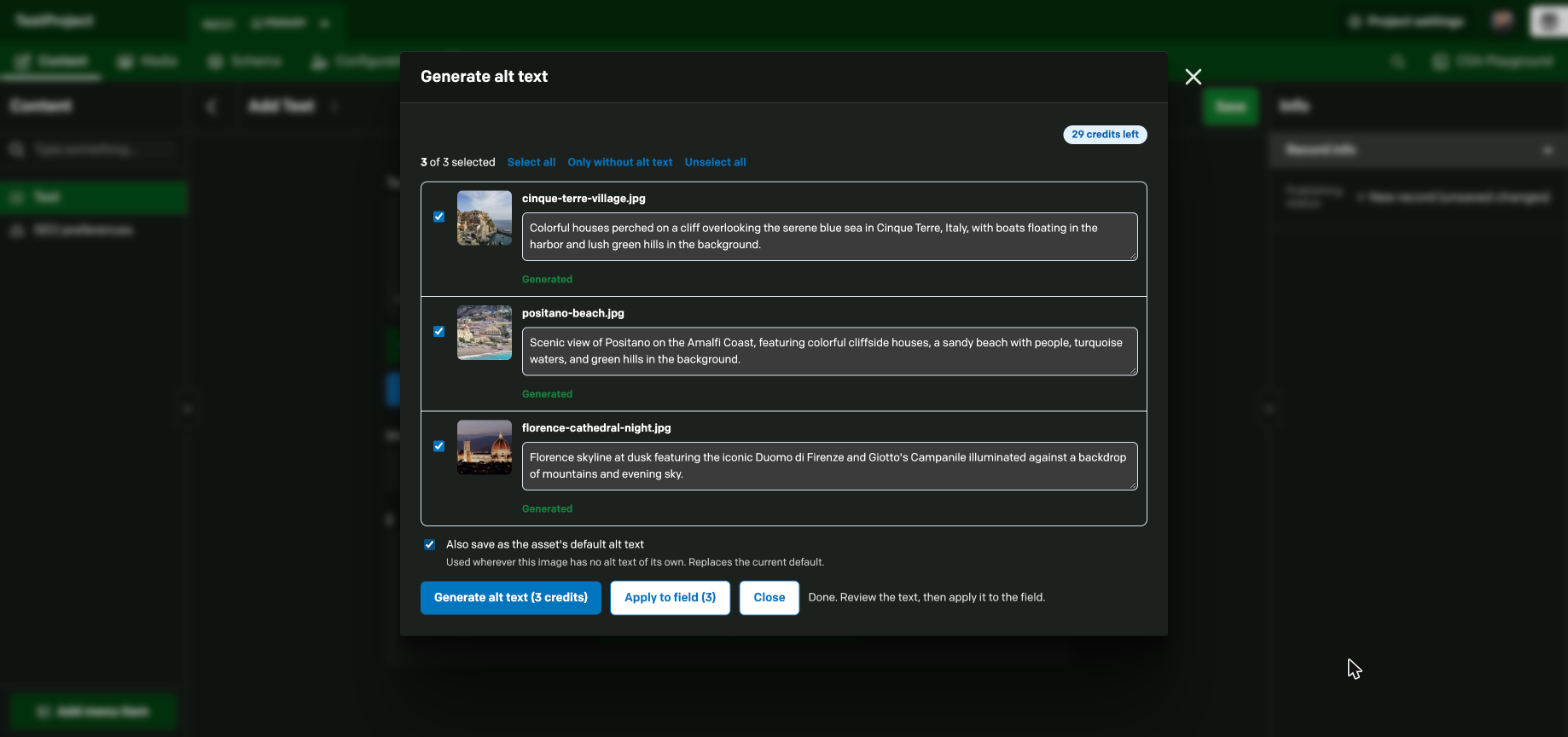
A dialog lists your images. The ones without alt text are already checked, and you can check any others. Click Generate alt text, review or edit the results, then Save (in a record, Apply to field, and then save the record).
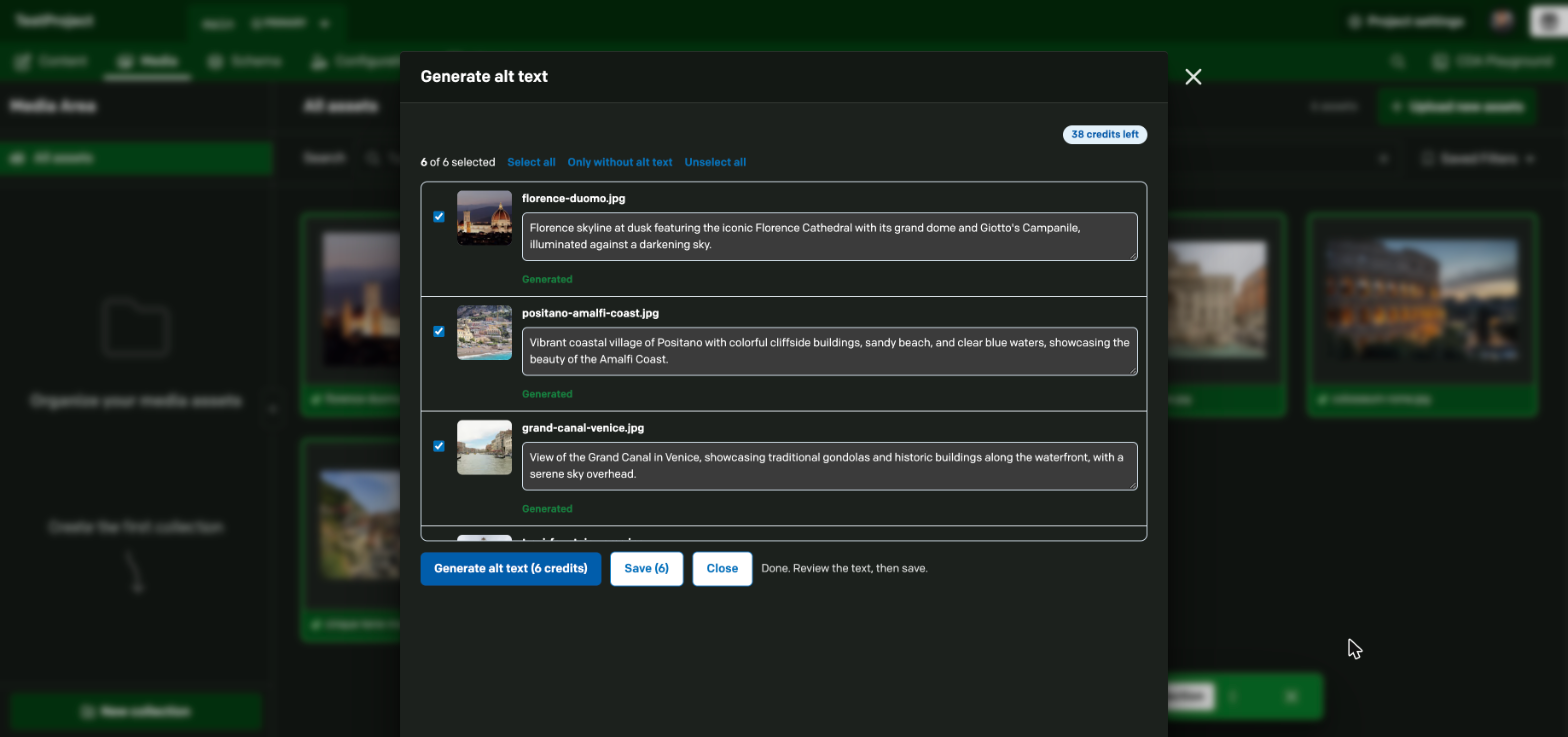
- The button shows the cost before anything is spent, for example Generate alt text (6 credits). Each image in each locale uses 1 credit.
- A Stop button ends a long run. What was already generated is kept in the boxes.
- If you do not have enough credits, you are told before you start.
- Nothing is saved until you click Save, so you can edit every description first.
In a record
In a record, the generated text goes into the field of the record you are editing. It is not saved until you save the record. For a localized field, it goes into the locale you are editing.
In the Media Area
In the Media Area, the alt text is saved on the asset itself (its default metadata) in the locale you choose. Every record that uses the asset and has no alt text of its own will use it. Alt text that was written in a record field is never replaced. Non-image files are skipped.
Features
- Choose what to generate: one dialog for everything. Check the images you want, with a shortcut to select only the ones without alt text.
- Locales: on a project with several languages, pick the locale, or All locales to fill every missing one at once. Each is written in its own language.
- Editable: every result can be edited before it is saved.
- Also save as the asset default: in a record, a checkbox saves the alt text on the asset too, so every other record that uses the image gets it. The asset's focal point and other metadata are kept.
- 130+ languages: from English, Spanish, French and German to Japanese, Arabic, Hindi and 120+ more.
- Many image types: works with JPEG, PNG, GIF, WebP, AVIF and SVG images.
- One-time credits: no monthly subscription. Credits never expire.
- Credits at a glance: your remaining credits show in the settings, in the dialog and on the Alt text page.
- Fast saving: several assets are saved at the same time.
Setup
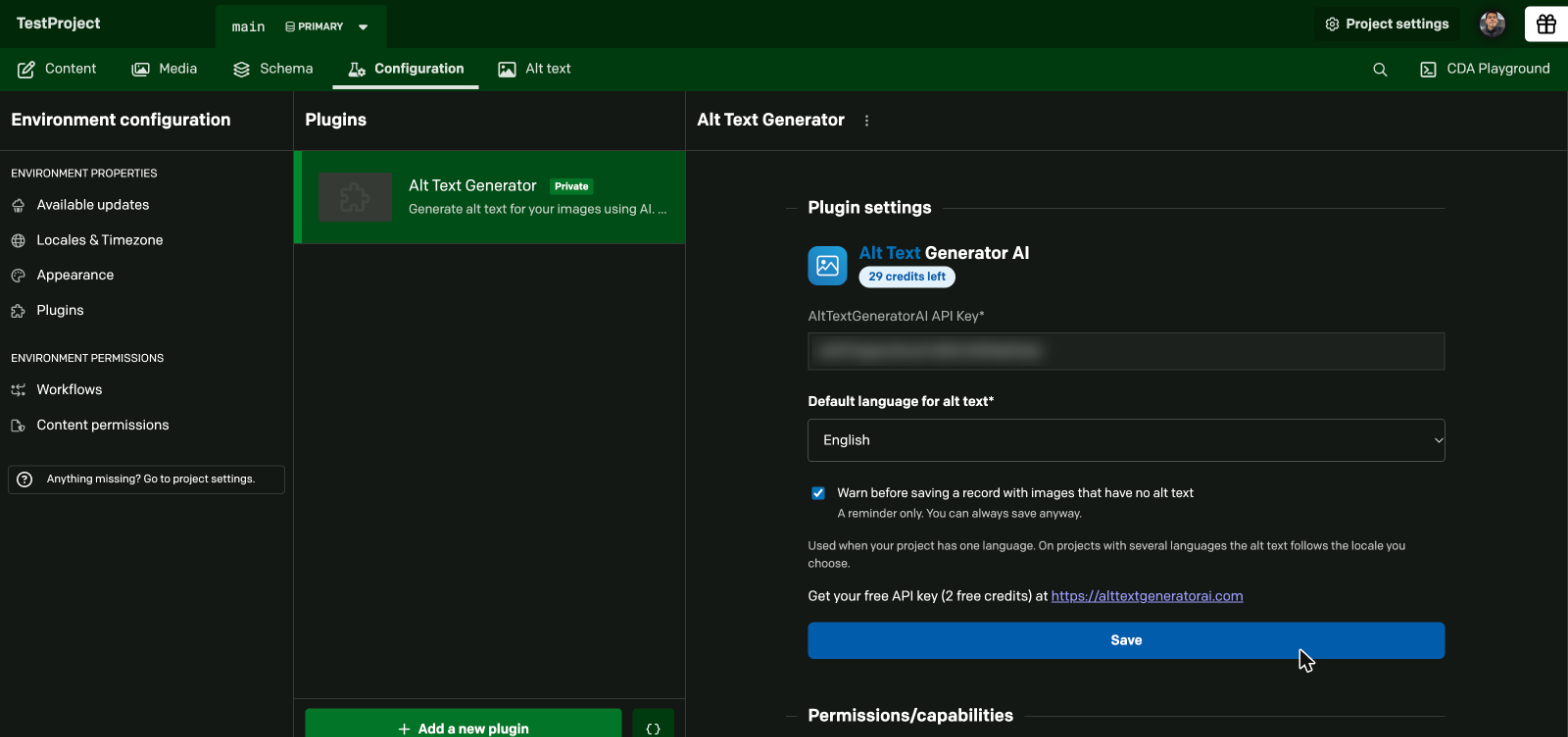
- Install the plugin and open its settings.
- Paste your API key and pick a default language.
- Approve the permission to read and update assets when DatoCMS asks.
Permissions
The plugin asks for the currentUserAccessToken permission. It is needed to read the selected assets and to update their default alt text in the current DatoCMS environment, using the access rights of the person who is logged in. Nothing is stored by the plugin.
Security and privacy
- Your API key is stored in the plugin settings. Anyone who can open the plugin settings in your DatoCMS project can see it. Use a key that belongs to your team, and do not share it outside the project.
- What is sent to AltTextGeneratorAI.com: your API key, the language, and the public address of each image you generate alt text for.
- Your DatoCMS access token is only used in the browser, to talk to DatoCMS. It is never sent to AltTextGeneratorAI.com.
- Your settings stay in DatoCMS. See the privacy policy for how images are handled by the service.
Limitations and notes
- The plugin is made for images. Other file types are skipped in the Media Area.
- One image can need different text in different places. Alt text written in a record only changes that record. Alt text saved on the asset is used wherever a record has no text of its own.
- Each image in each locale uses one credit, also when you regenerate it.
Development
Run commands from this directory:
npm start: start the local development server (port 3000).npm run build: build the plugin intobuild/.
To try it in a project, add a private plugin in DatoCMS with http://localhost:3000/ as its entry point.